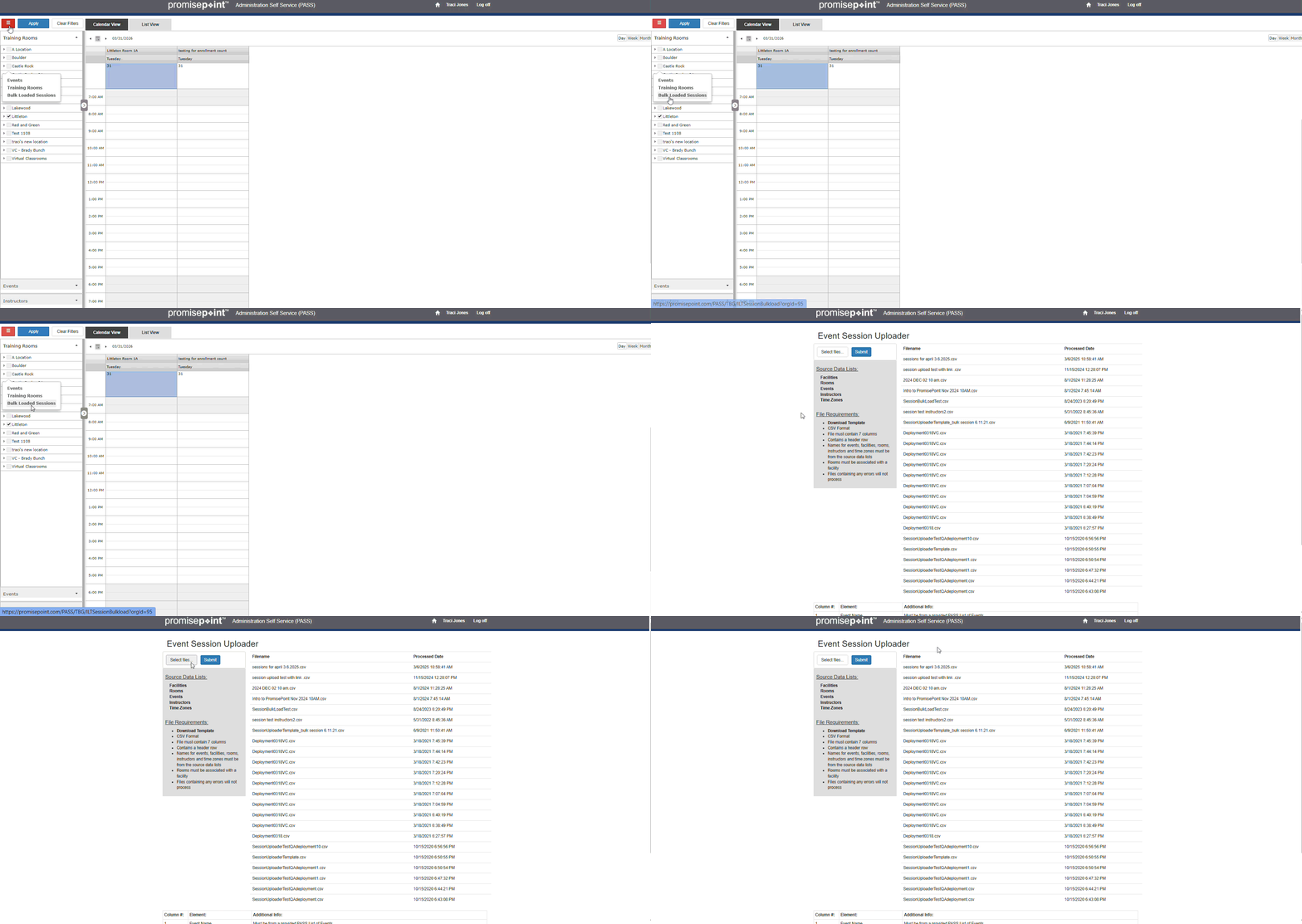
Learn how to bulk load a session as a PASS administrator with the ILT Session and training room admin role by watching this short video that covers submitting the file and creating the file.
Video: Bulk Load a Session
Or follow these quick steps:
Submit the bulk file in the Event Session Uploader
- Log into PASS.
- Click Session Scheduler in the Instructor Led Training Management section.
- Click the red menu icon.
- Click Bulk Loaded Sessions.
- Click Select files....
- Find and open the bulk file with the sessions you want to load. (see next step to create your file)
- Click Submit.
Note: If the file fails to load it will give error messages telling you why it failed. Fix the file and submit the file again.
Create the .csv file for the Event Session Uploader
- From the Event Session Uploader click Download Template.
- Open the file in excel.
- Enter an Event Name.
- Enter a Facility Name.
- Enter a Room Name.
- Highlight the Start Date/Tim and End Date/Tim cells.
- Right-click the cells; the click Format Cells.
- Click Custom in the Category menu.
- Type yyyy-mm-dd hh:mm in the type field.
- Then, press Enter.
- Click OK to save your formatting.
- Then, enter the start date/time and end date time for your session.
- Enter the Instructor username if desired.
- Save the file as an .csv file.