PASS includes a manager role that can be added to a PromisePoint user in PASS by a PASS administrator with the User admin role.
The manager role can provide a variety of tasks:
- Access the user list and manage user assignments (the site's PromisePoint must be set up for this)
- Enroll students to the roster for a class session
- Have direct reports assigned to their user profile:
- Be notified of their assignments through the email notification if it's enabled
- Be included in messages that are sent to a user assigned to them as a direct report
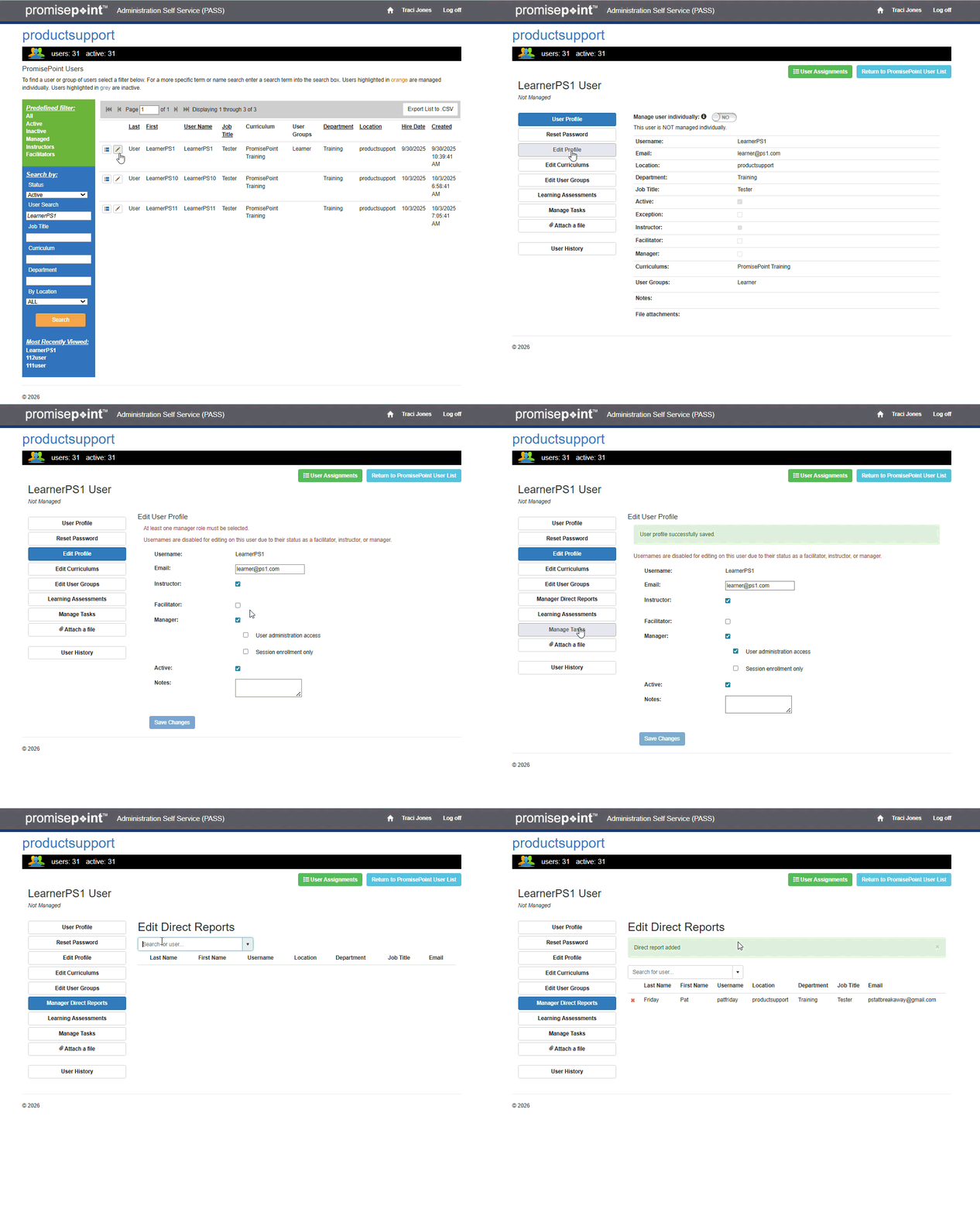
This article describes how to update a user to a manager, and how to then assign direct reports to their user profile by following these quick steps:
Update the user to a manager
- Log into PASS.
- Click PromisePoint user list under the PromisePoint User Management section.
- Search for the user by entering the search parameters; then click Search.
- Click the Pencil icon to the left of user’s name.
- Click Edit Profile.
- Check the box Manager.
- Then, check the box for User administration access.
- Click Save Changes.
Assign users as direct reports to the manager
- Now an option, Direct Reports appears.
- Click on Direct Reports
- Search for the name to add to the PromisePoint user as a direct report by keying in the name.
- Select the user.