


Learn how to add a curriculum or user group to a user as a PASS Curriculum Management administrator by watching this short video.
Video: Add Curriculum or User Group
Or follow these quick steps:
- Log into PASS.
- Click PromisePoint User List.
- Find the user using the filters and/or search boxes and click Search.
- Click the Pencil (icon) next to the user’s name to edit their profile.
- Click the Manage user individually sliding bar

Note: To manually add a curriculum or a user group, the user profile needs to be set to manage individually. Once this setting is changed, their user profile will no longer be updated through the bulk loader.
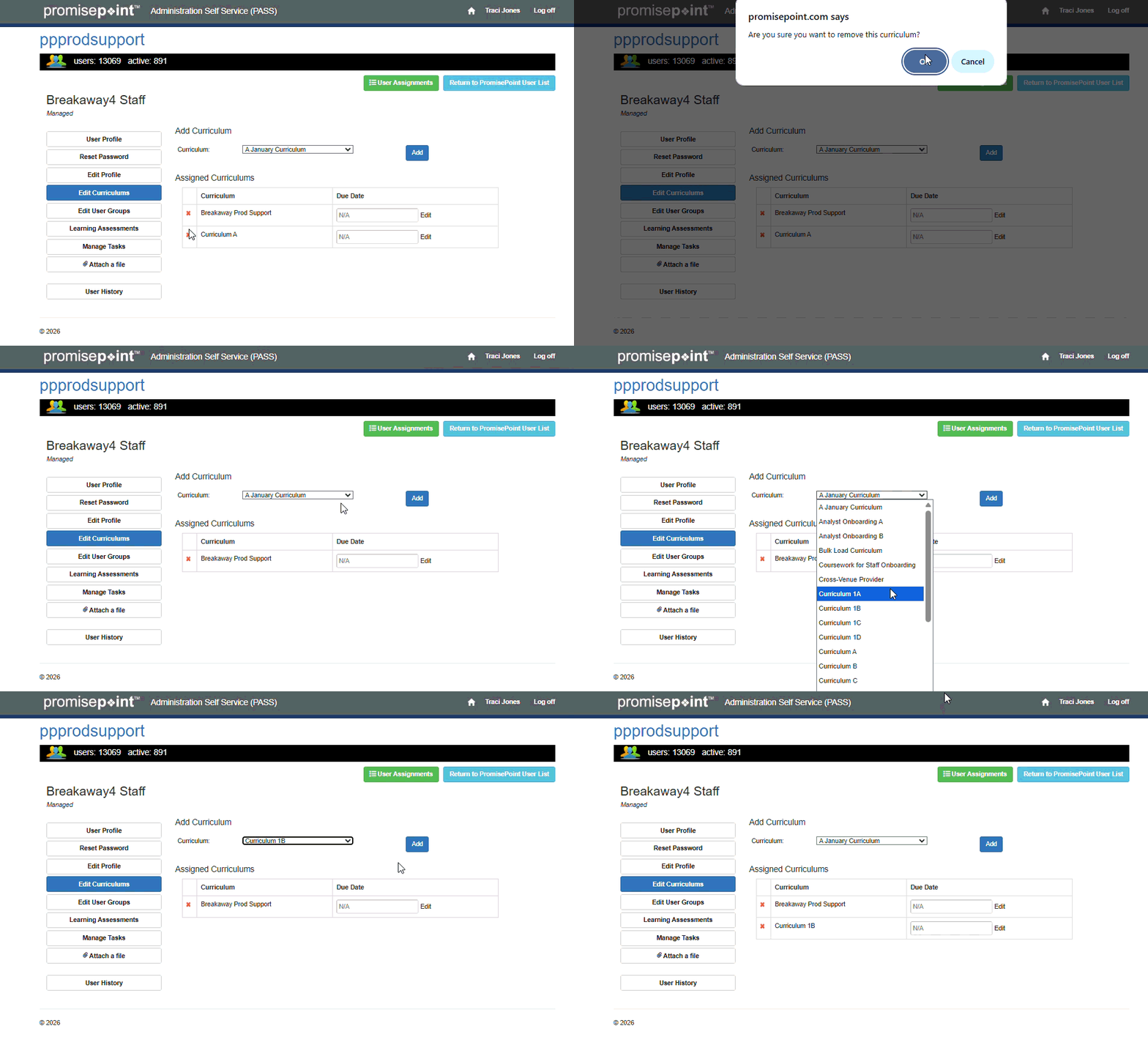
- Click Edit Curriculums

- Click the Curriculum drop-down arrow; then select the desired curriculum.
- Click Add.
- You can perform the same steps if a user group needs to be added by clicking on the User Group option

Note: To see the updates, click Return to PromisePoint User List. Then, perform your search again.
Additional Resources: